Chat on WordPress
Add the website chat line to a WordPress site with a header and footer plugin, or in a classic theme's footer, on self-hosted WordPress and WordPress.com.
The simplest way is a plugin that adds code to every page's footer. It works with any theme, and it keeps the line when the theme updates.
Before you start
- The line, with your key in it. Steps 1 to 4 of Add chat to your website cover it.
- A key for every address the site answers on, usually
https://example.comandhttps://www.example.com. - An administrator account on the site.
- On WordPress.com, a paid plan. Plugins need one; see WordPress.com below.
With WPCode
WPCode, listed in the plugin directory as Insert Headers and Footers, adds code to every page.
- Go to Plugins > Add Plugin (Add New Plugin on older versions), search for WPCode, then install and activate it.
- Go to Code Snippets > Header & Footer.
- Paste the line into the Footer box. WPCode prints it just above the
closing
</body>tag. - Choose Save Changes.
- If the site uses a caching plugin, clear its cache.
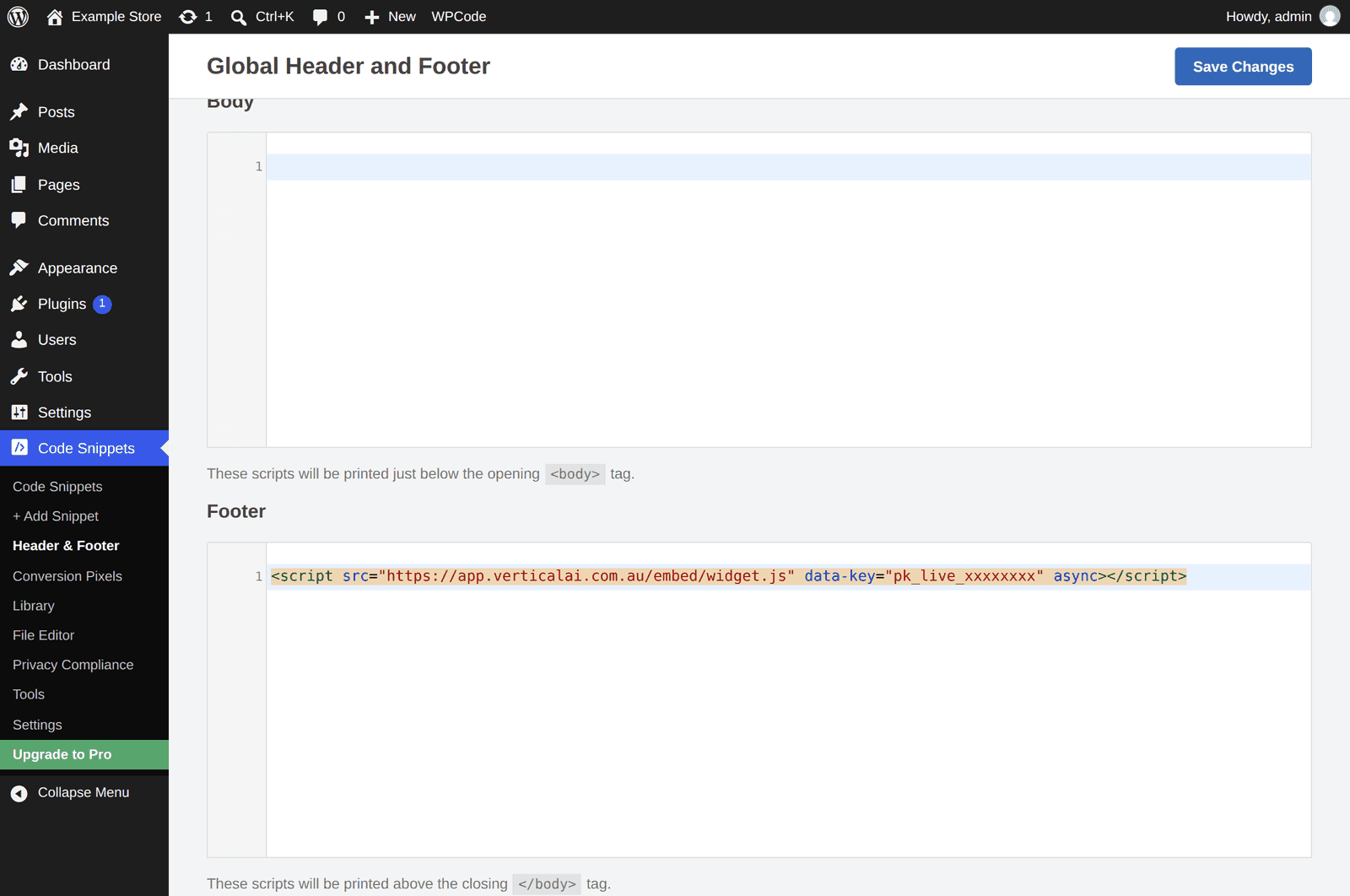
The chat button then shows on every page, with any theme.
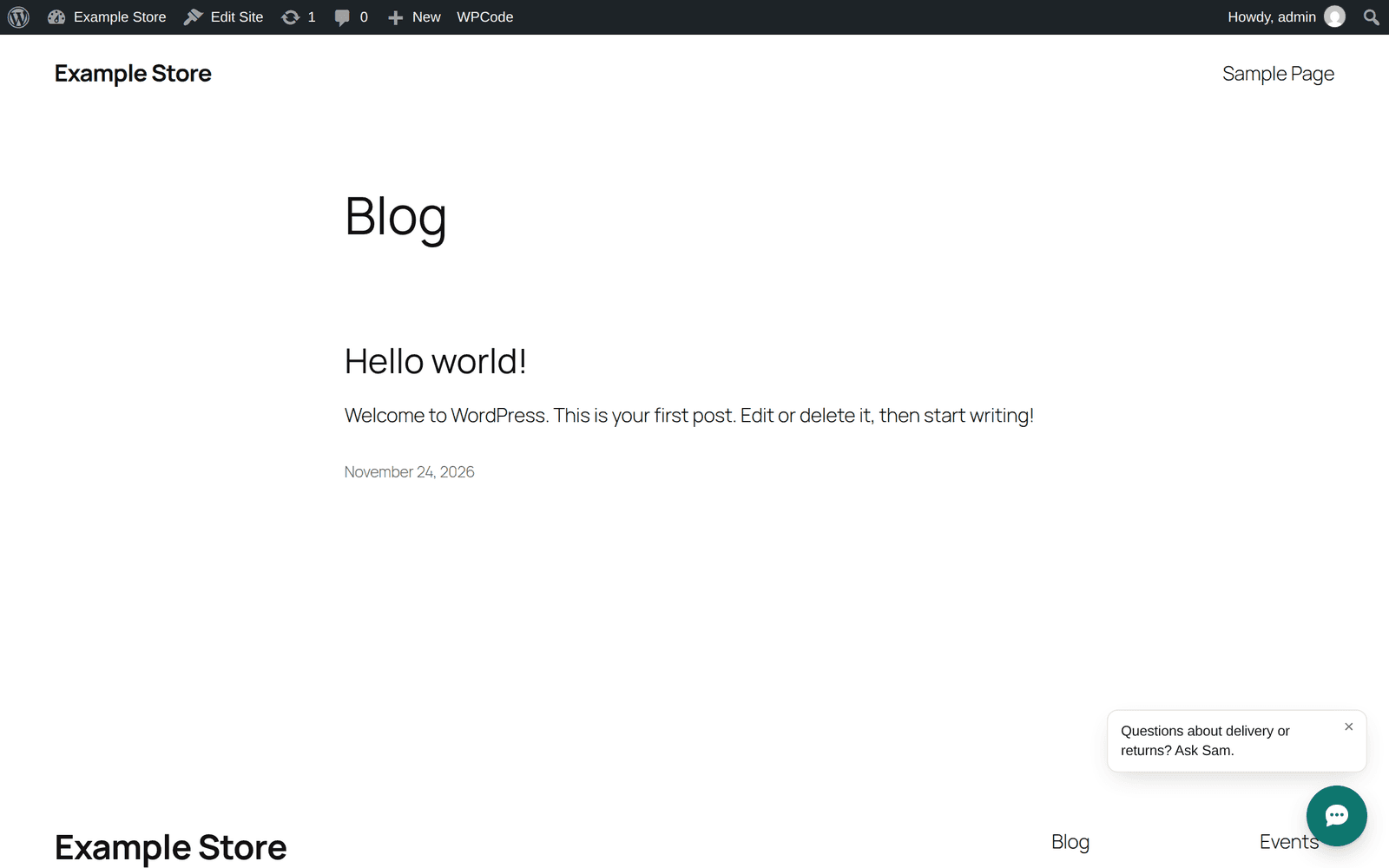
Screenshots from WordPress 7.1 with WPCode 2.4 and the Twenty Twenty-Five theme.
Without a plugin, on a classic theme
- Go to Appearance > Theme File Editor.
- Open
footer.phpand paste the line just above the closing</body>tag. - Choose Update File.
A theme update overwrites this file, and the editor keeps no backup. Make the change in a child theme, or use WPCode.
A block theme, such as Twenty Twenty-Five, has no footer file to edit and no setting for site-wide code. Use WPCode.
WordPress.com
Installing plugins is available on WordPress.com's paid plans: Personal, Premium, Business and Commerce. Scripts also need the plan's hosting features activated; until then, WordPress.com says, the same limits as a free site apply. Once they're active, install WPCode from Plugins > Add Plugin in WP Admin and follow the steps above. A free WordPress.com site can't run scripts, so it can't show the chat.
Check it
Open the site in a private window and follow Check it works. A private window shows the page as a visitor gets it, cache and all.
Help from WordPress and WPCode
- WPCode: global header and footer
- WPCode in the plugin directory
- Theme File Editor
- WordPress.com: install a plugin
- WordPress.com: code on your site